



Squareup Shop Connector add-on for CS-Cart
Seamlessly integrate your vendor’s Shopify website with your CS-Cart marketplace
- Seamless Integration : Connects Squareup with CS-Cart to ensure smooth data flow between the two systems.
- Product Importing : Automatically import products, including variants, options, descriptions, prices and images, from Squareup to CS-Cart.
- Order Management : Transfers orders from CS-Cart to Squareup for efficient processing and management, including order status updates.
- Inventory Management : Synchronizes stock levels to prevent overselling and ensure accurate inventory data across both systems.
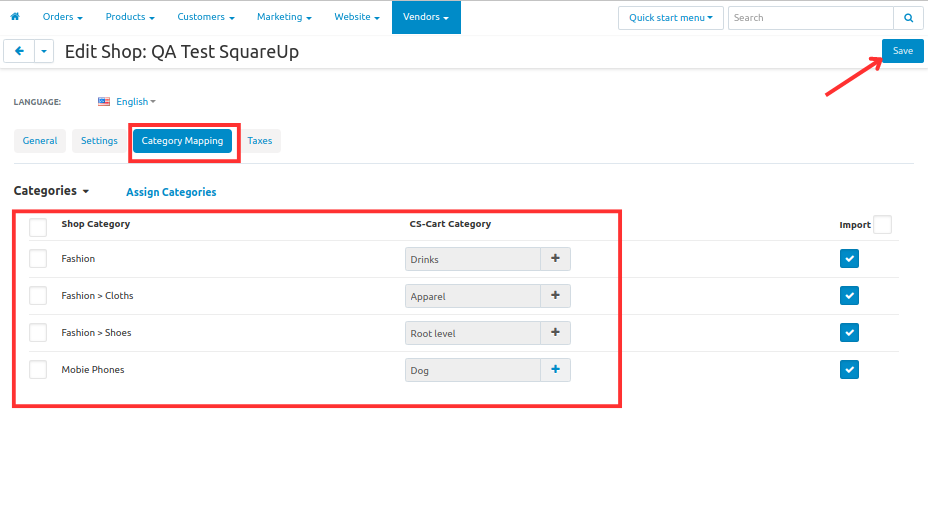
- Data Mapping : Allows mapping of collections and product type from Squareup’s with CS-Cart categories to ensure compatibility between Squareup and CS-Cart data structures.
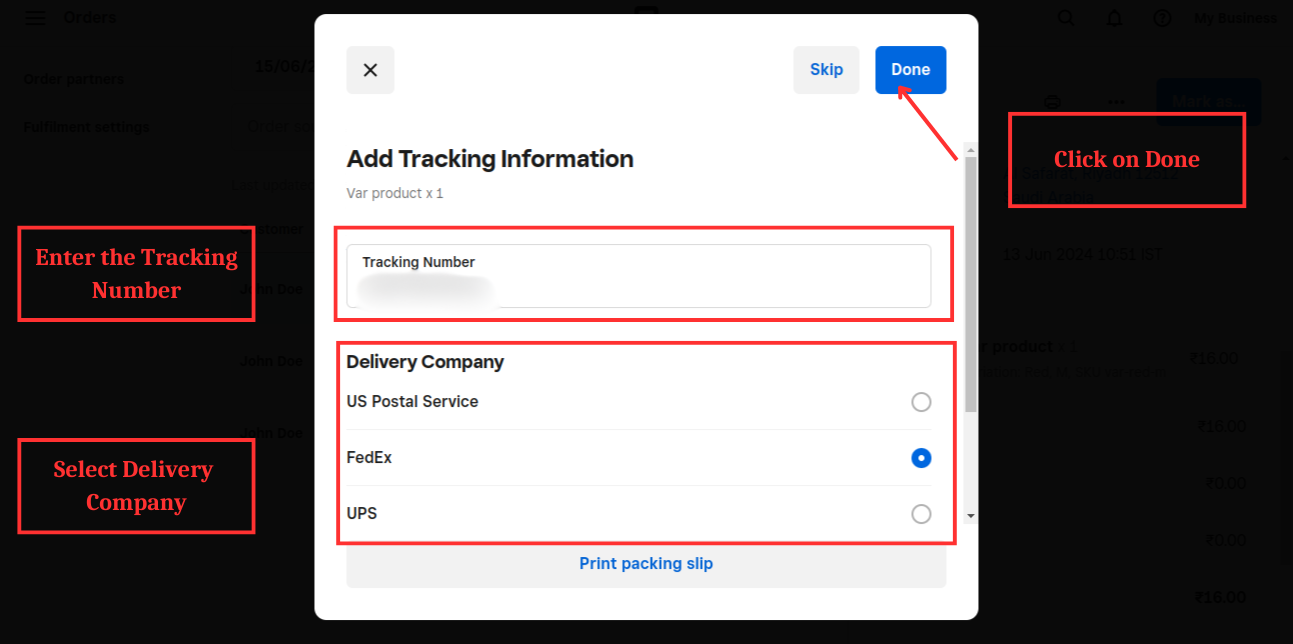
- Shipment Creation at Squareup : Generate shipment with tracking number at Squareup.
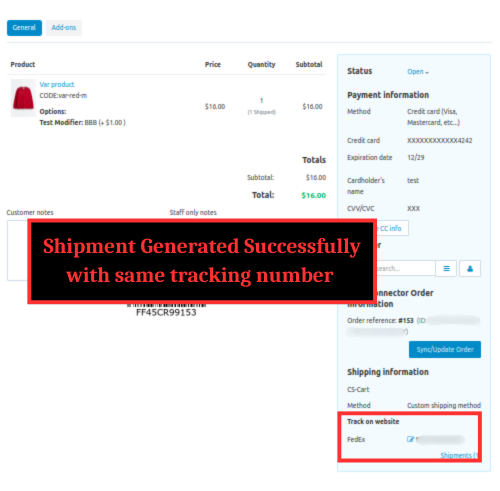
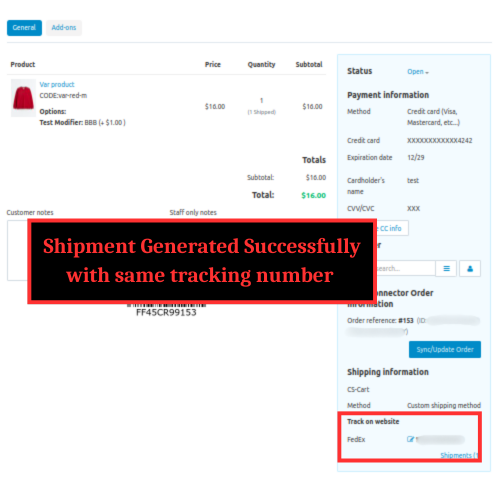
- Synchronized Shipment Tracking : The same shipment with the identical tracking number is automatically placed in CS-Cart.
- The add-on simplifies admin tasks by automating product synchronization from Squareup to CS-Cart , ensuring efficient management and accurate data flow.
- The add-on provides customers with a seamless shopping experience by ensuring up-to-date product information and synchronized order processing across Squareup and CS-Cart.
Why our Squareup add-on is the ultimate choice for E-commerce Enhancement?
- Hassle-Free Integration: This add-on ensures a smooth and hassle-free integration process, allowing you to quickly and effortlessly connect your CS-Cart store with the Squareup add-on.
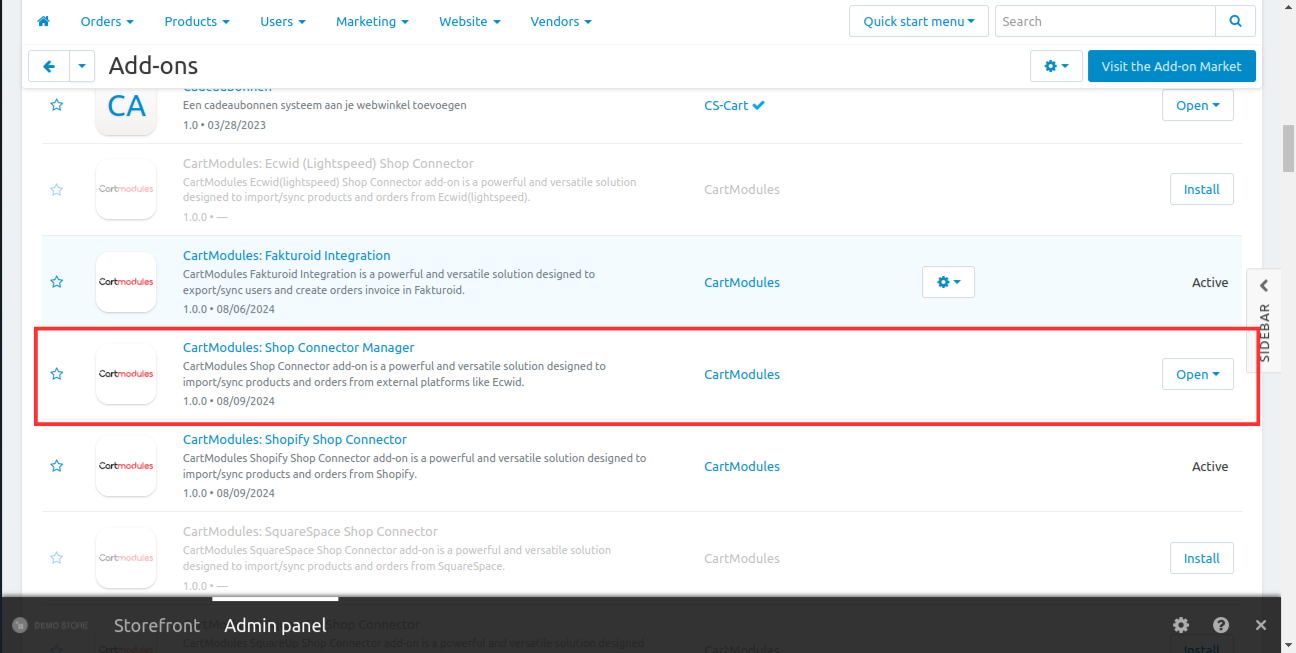
Note : The Shop Connector Manager should be purchased and installed before SquareUp Shop Connector to make the SquareUp Shop Connector functioning well.
Add-on Installation Steps
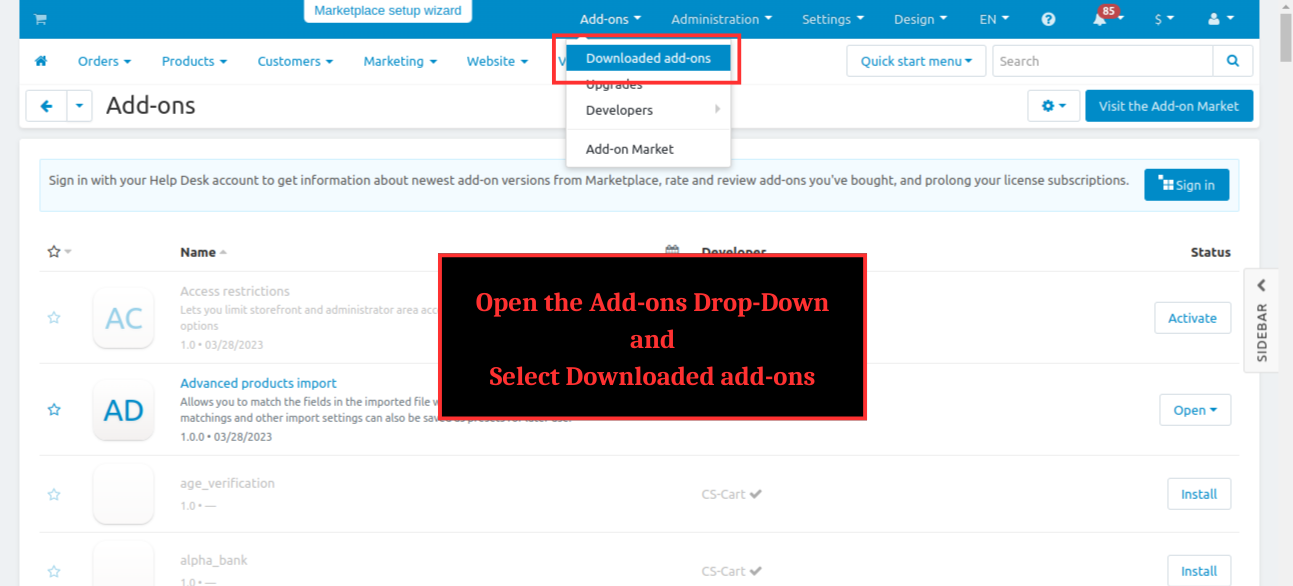
Step 1 : Open the Add-ons drop-down and select ‘downloaded add-on’

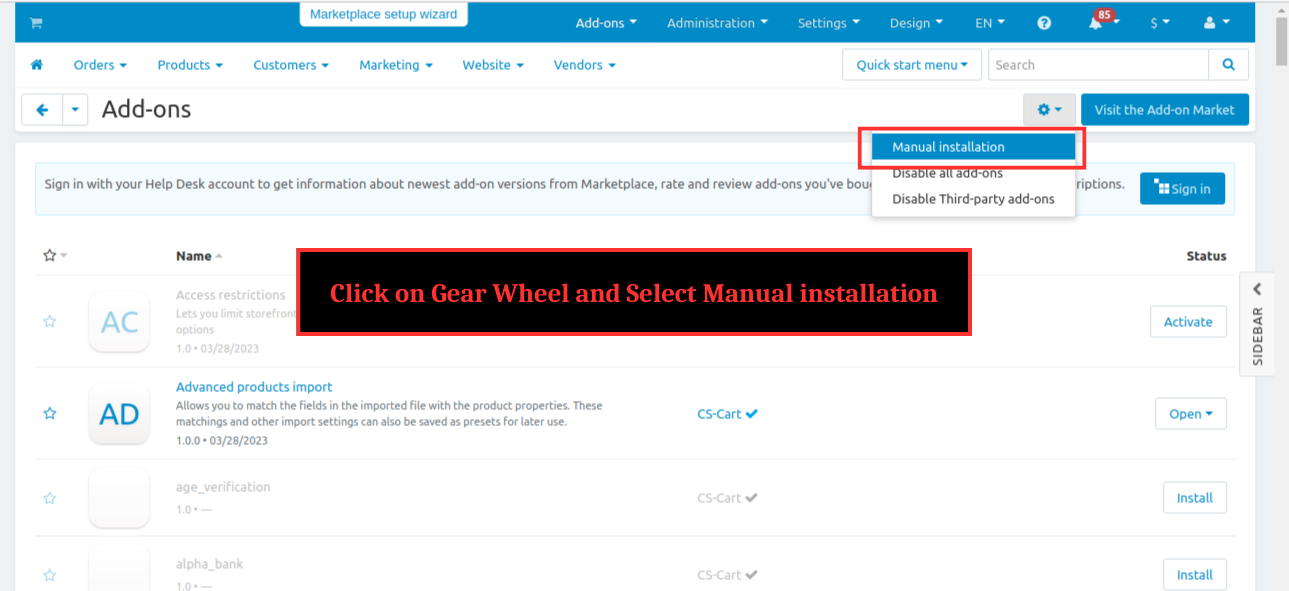
Step 2 : Click on gear wheel and select ‘Manual installation’

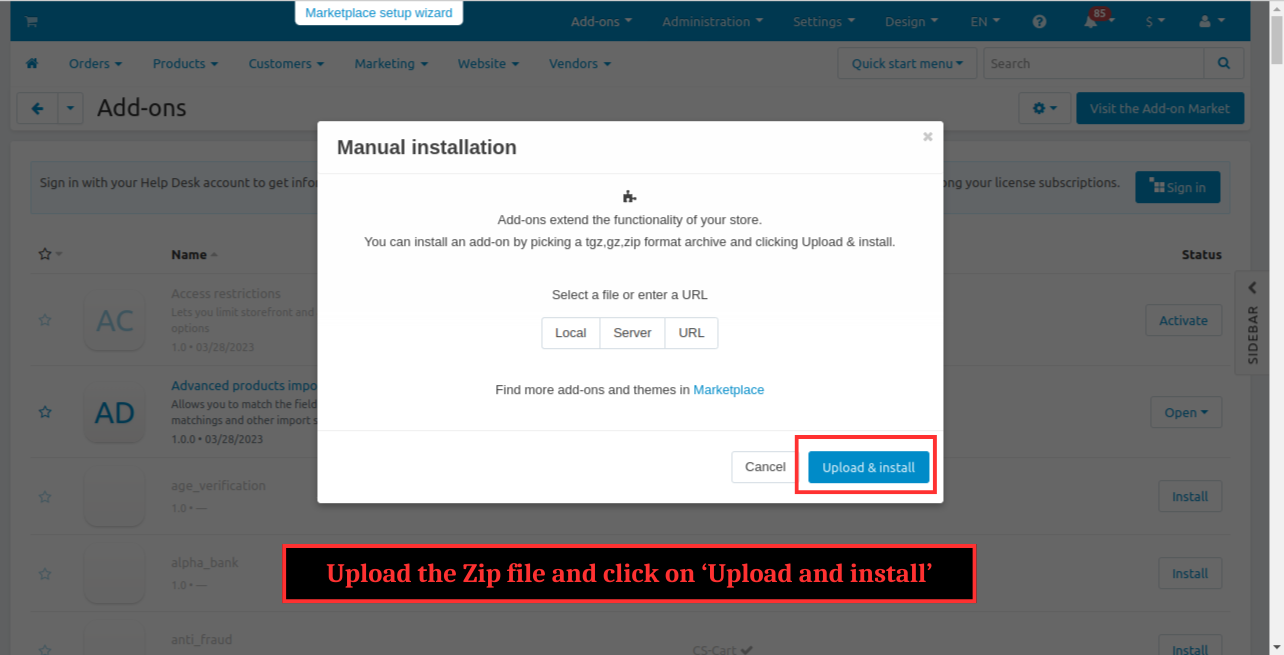
Step 3 : Upload the zip file and click ‘Upload and install’

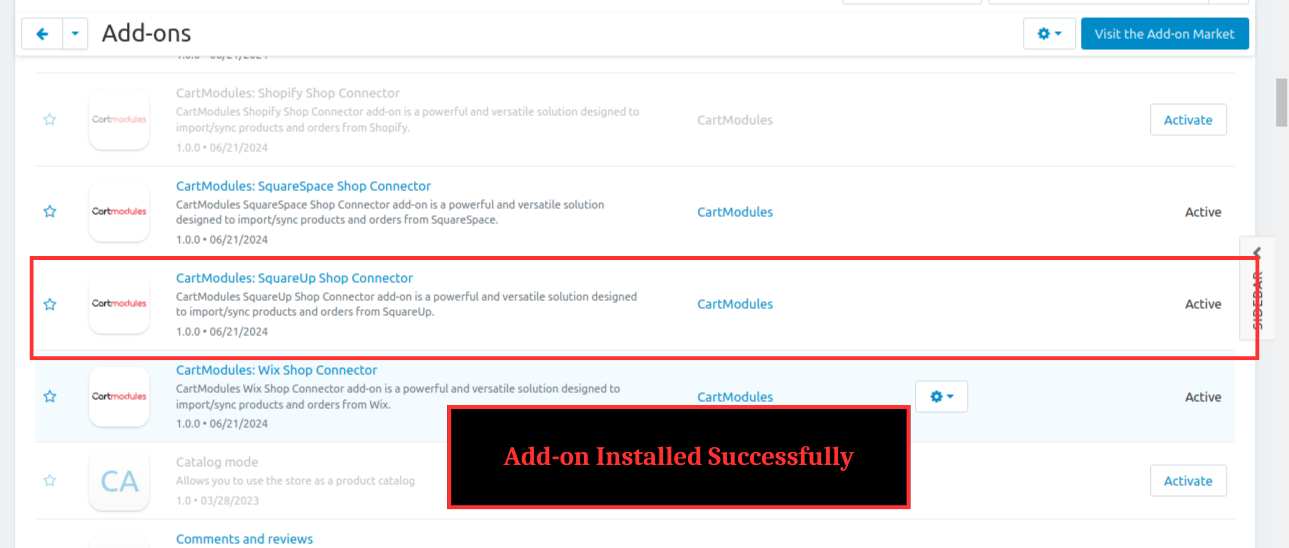
The add-on installed successfully

Note : The Shop Connector Manager should be purchased and installed before SquareUp Shop Connector to make the SquareUp Shop Connector functioning well.

Steps to follow for successful integration :
Steps to test Squareup integration:-
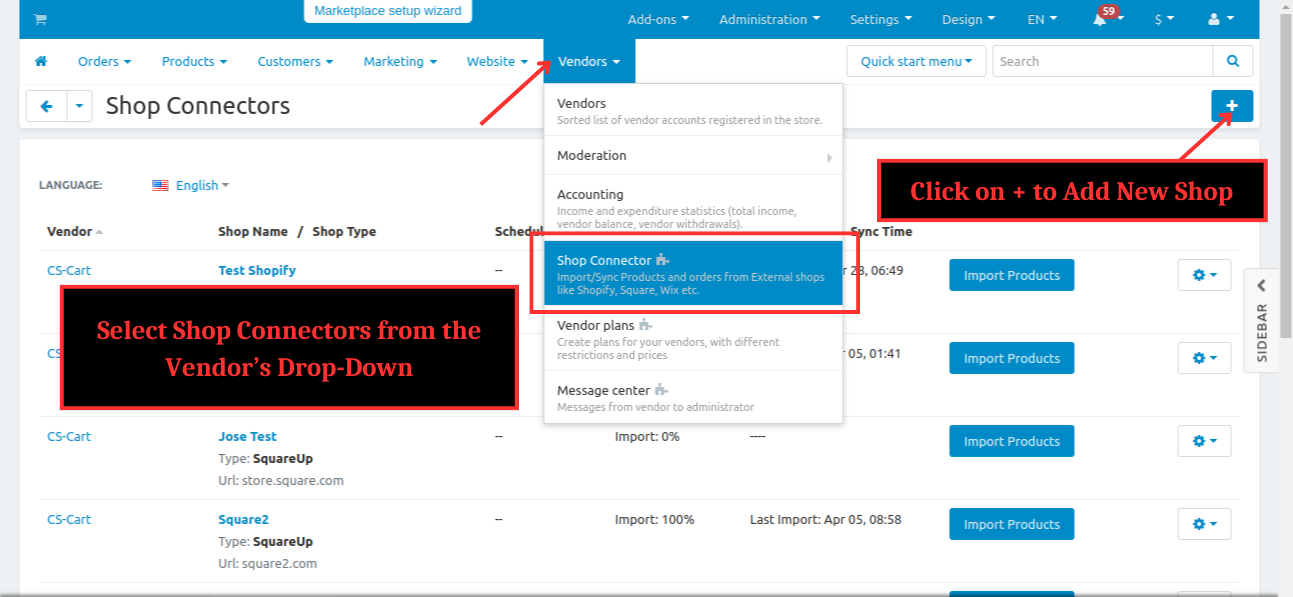
Step 1 : At CS-Cart , Select Shop-Connectors from the Vendors Drop-Down and Click on ‘+’ to add new shop
%201.png?1724758129644)
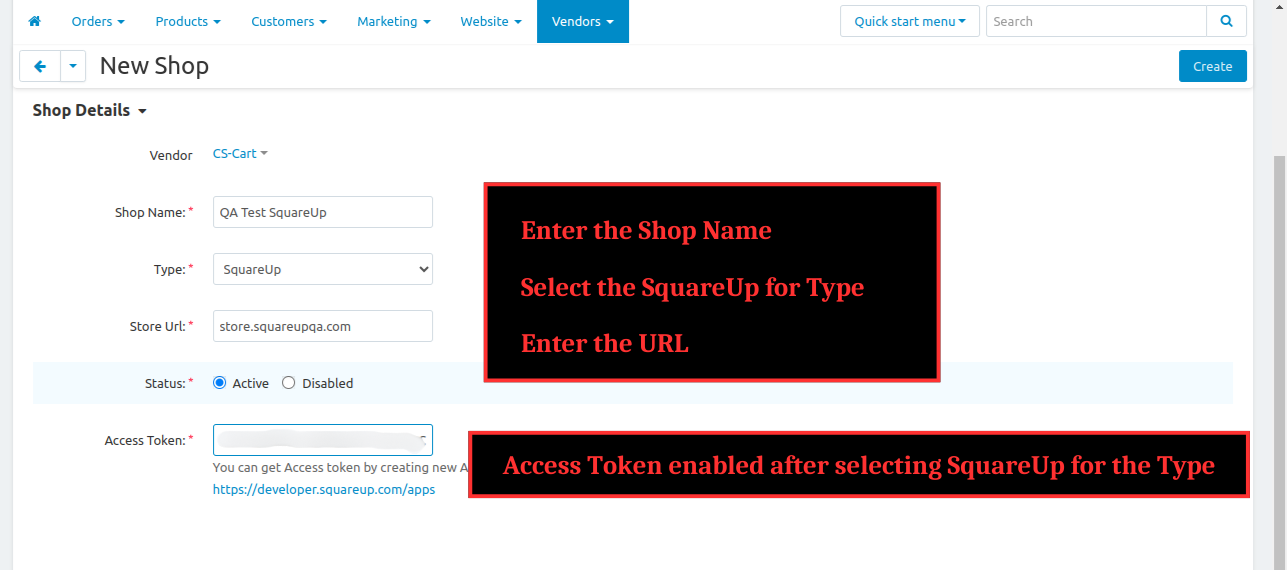
Step 2 : Enter the Shop Name , Select the SquareUp for Type , Enter the URL
%202.png?1724758169459)
Note :Paste the Access Token copied & Click on Create button
Note :The steps to create the Access Token successfully is present at the end of document
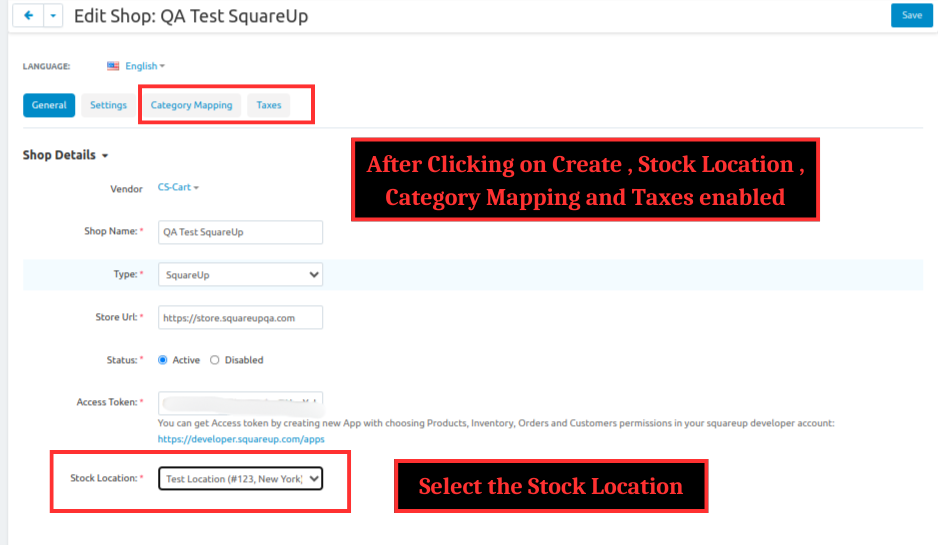
Step 3 : After clicking on create, Stock Location , Category Mapping and Taxes enabled
%203.png?1724758181149)
Step 4 : Map Squareup categories with CS-Cart and save shop
%204.png?1724758195142)
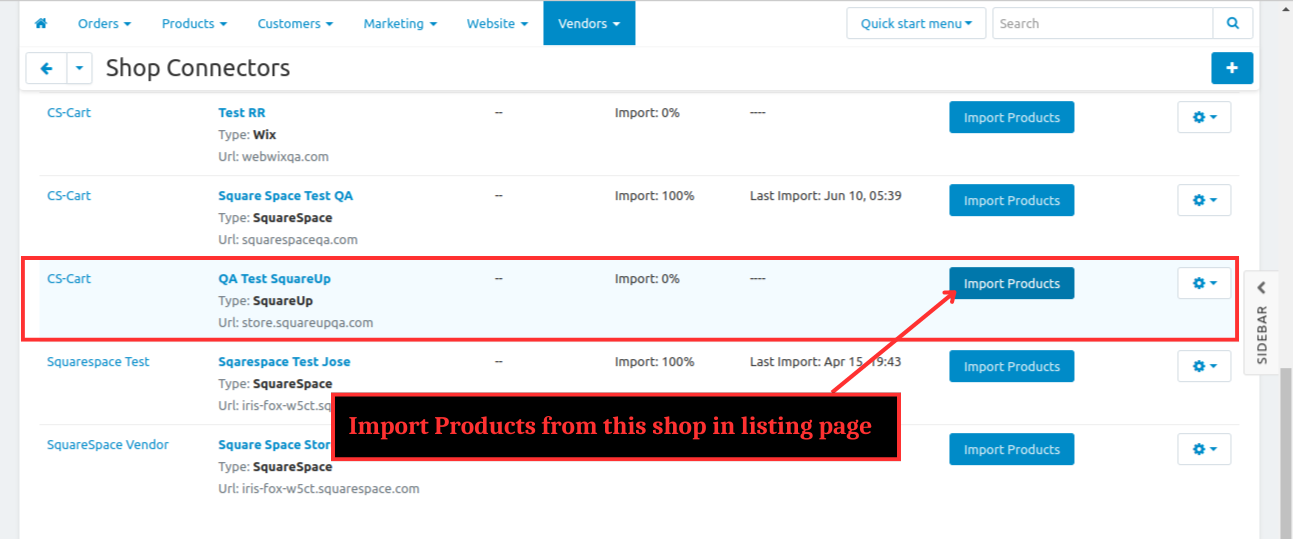
Step 5 : Import products from this shop in listing page of shop connectors
%205.png?1724758208168)
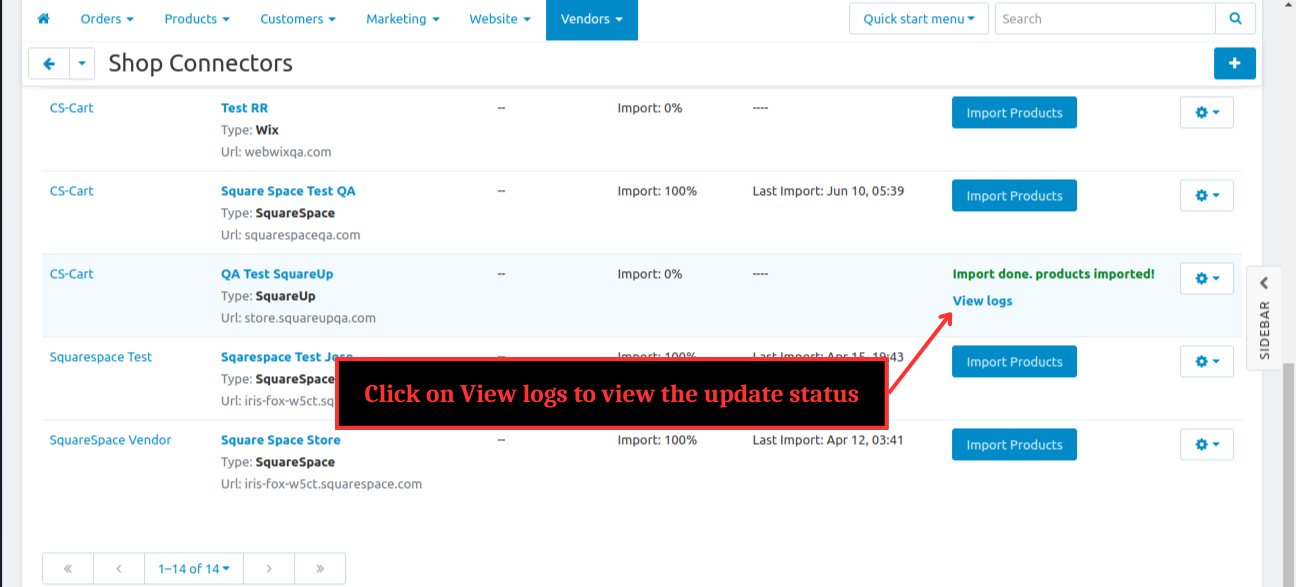
Once the importing is done , Click on View logs to view the update status
%206.png?1724758220339)
%207.png?1724758233262)
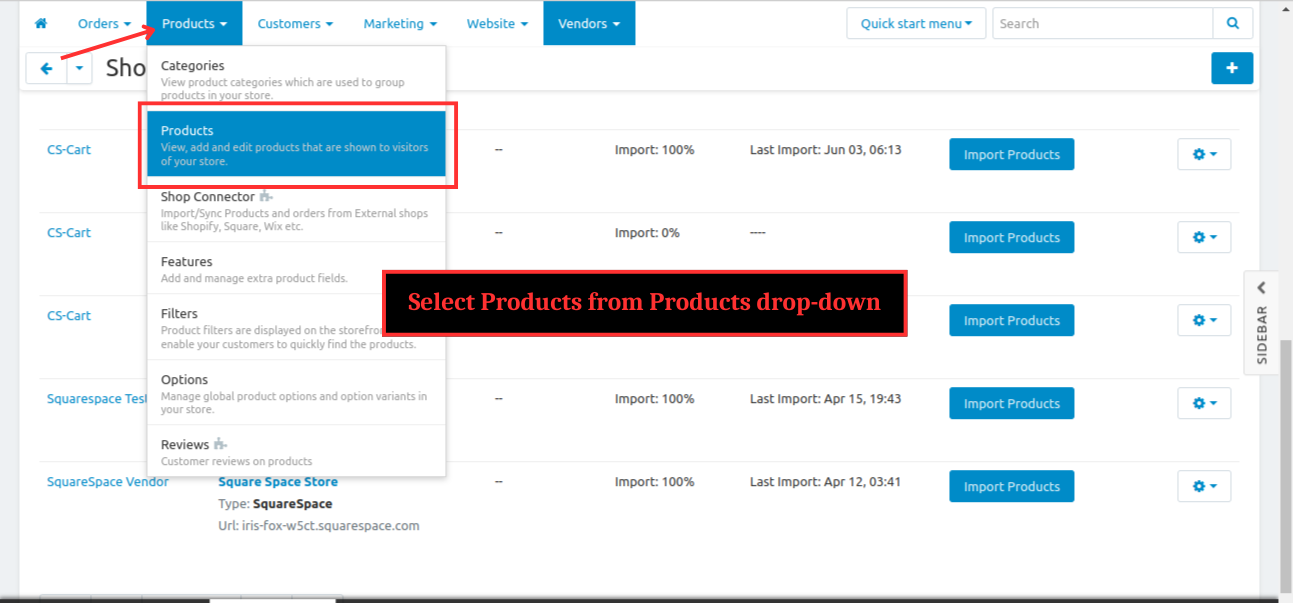
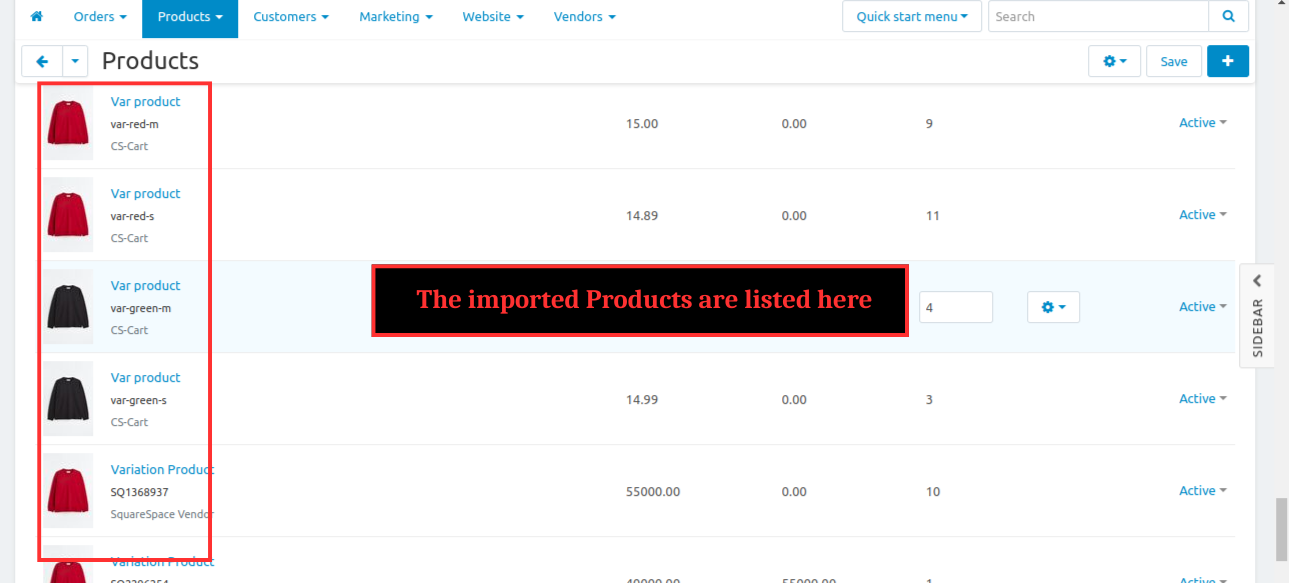
Step 6 : Now the imported products are listed in Products -> Products
%208.png?1724758259729)
Step 7 : Here , the imported products are listed
%209.png?1724758379858)
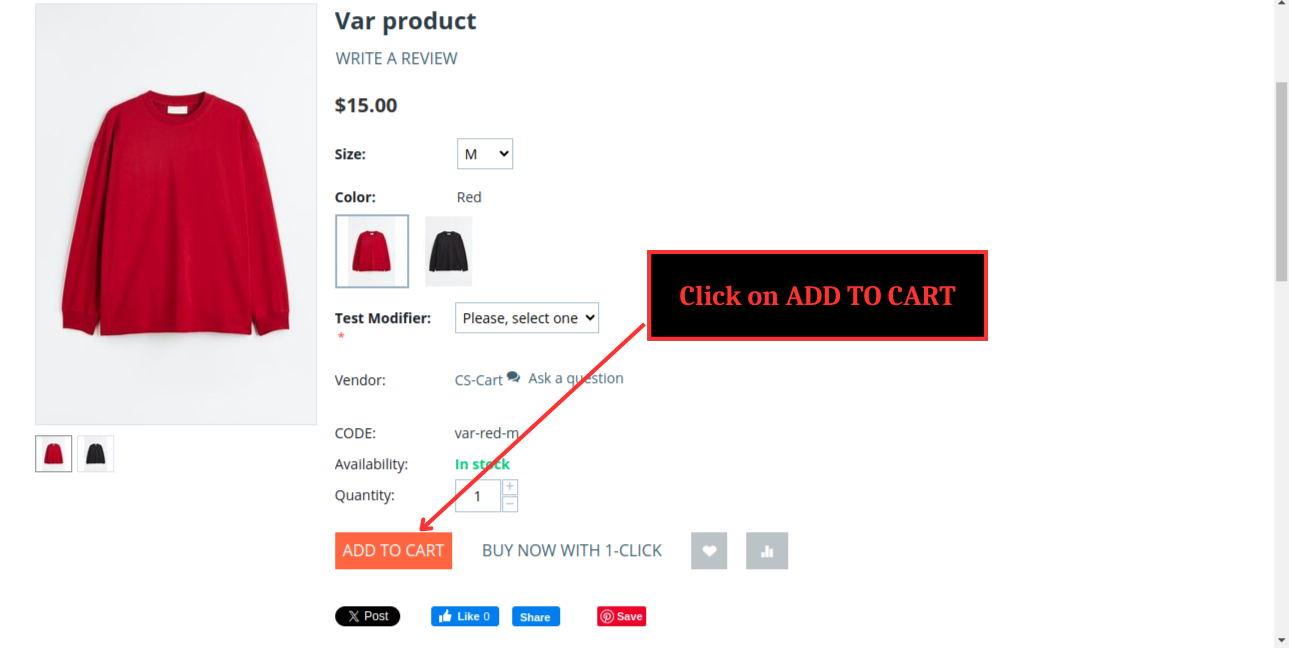
Step 8 : Now , Open the product at front end and Click ‘Add to Cart’ proceeding to checkout
%201.png?1724758397605)
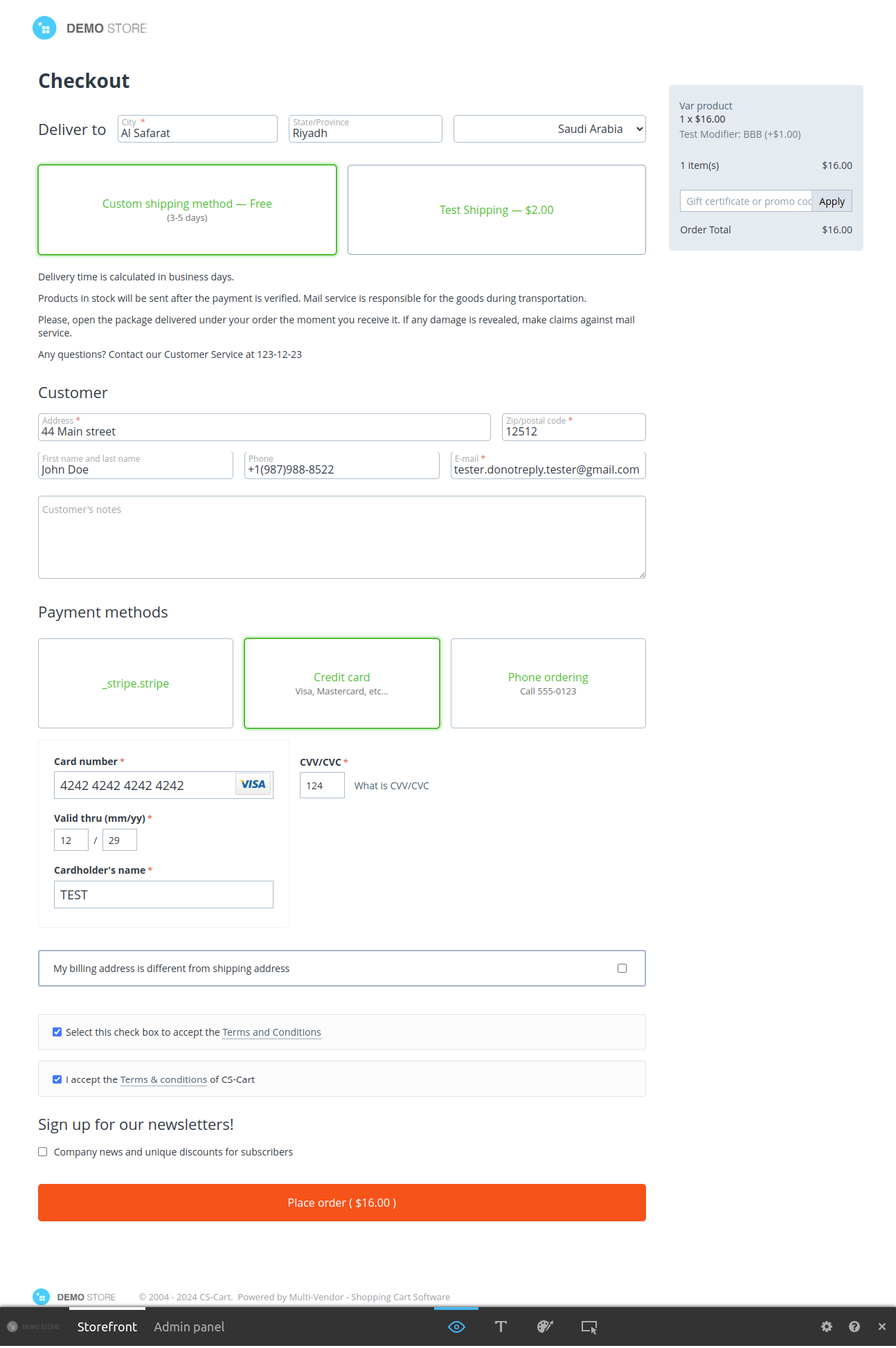
Enter the required details at checkout page and Click on Place Order
%202.png?1724758409404)
Step 9 : At admin panel , Select Orders -> View orders
%2010.png?1724758565250)
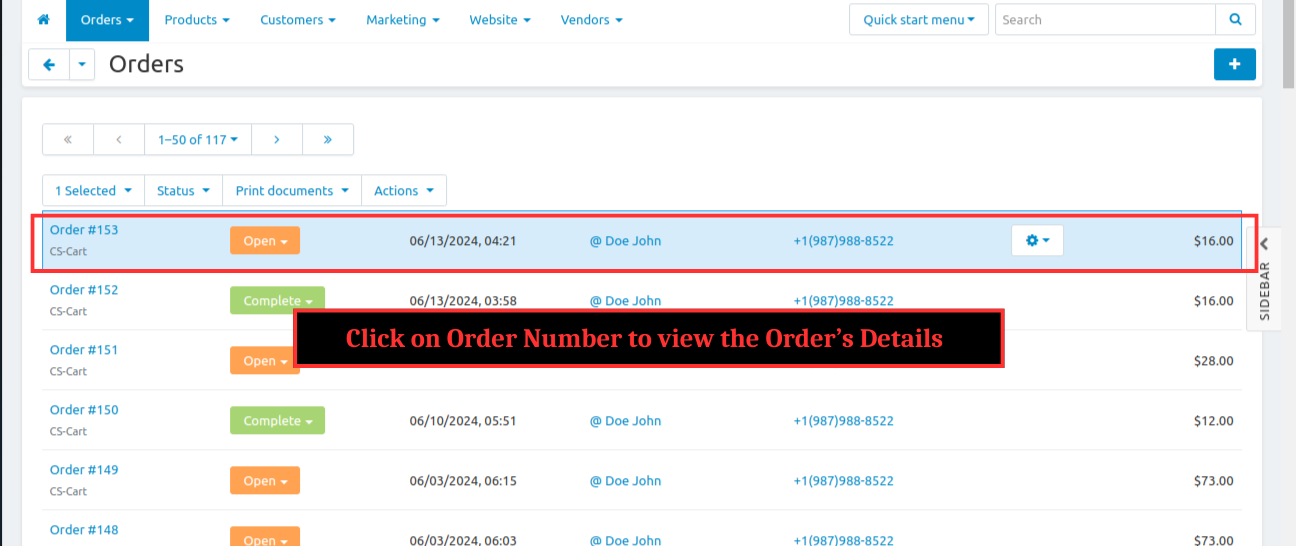
Step 10 : Click on Order Number to view the Order’s Details
%2011.png?1724758583693)
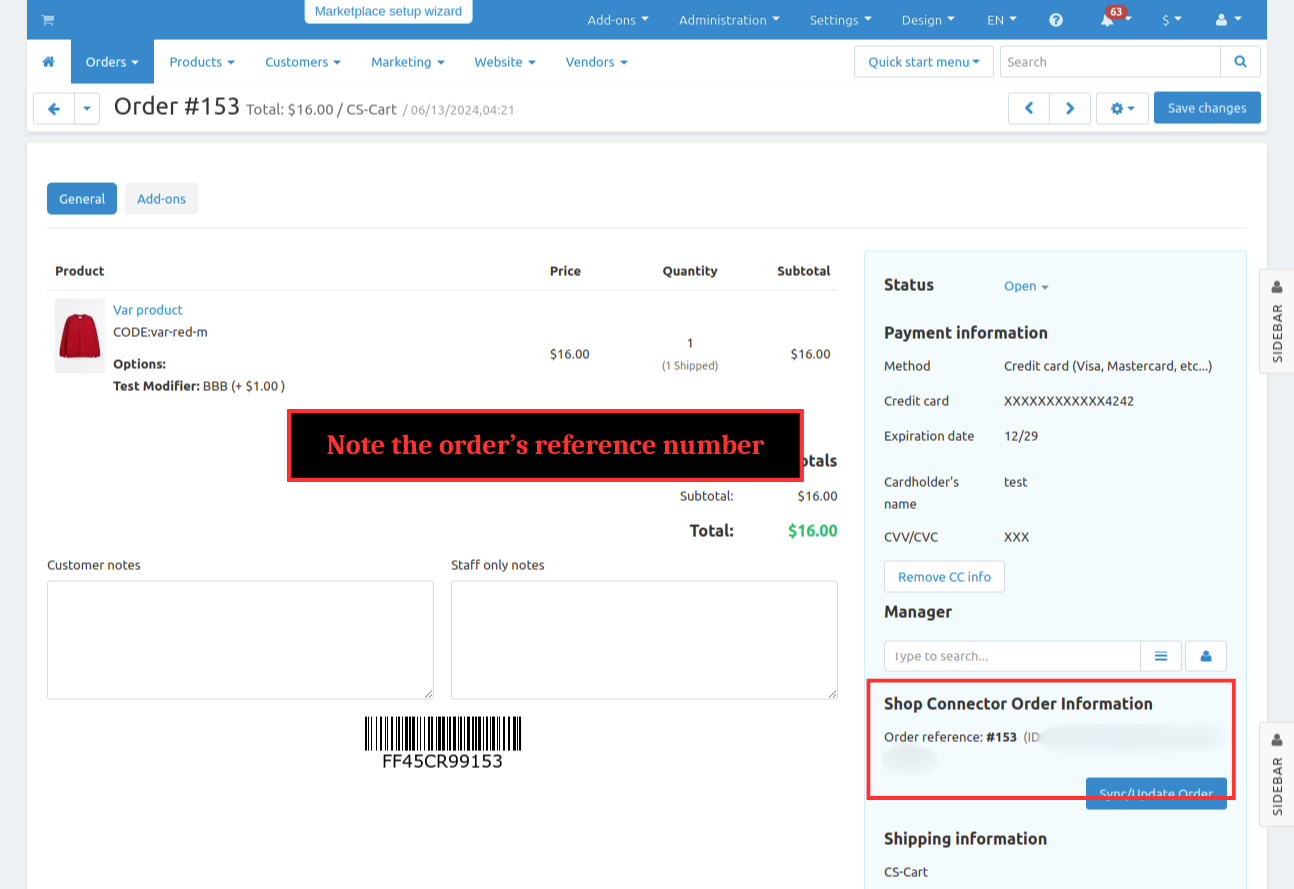
Step 11 : Note the order’s reference number from the Order’s Detail’s Shop Connector order information
%2012.png?1724758599292)
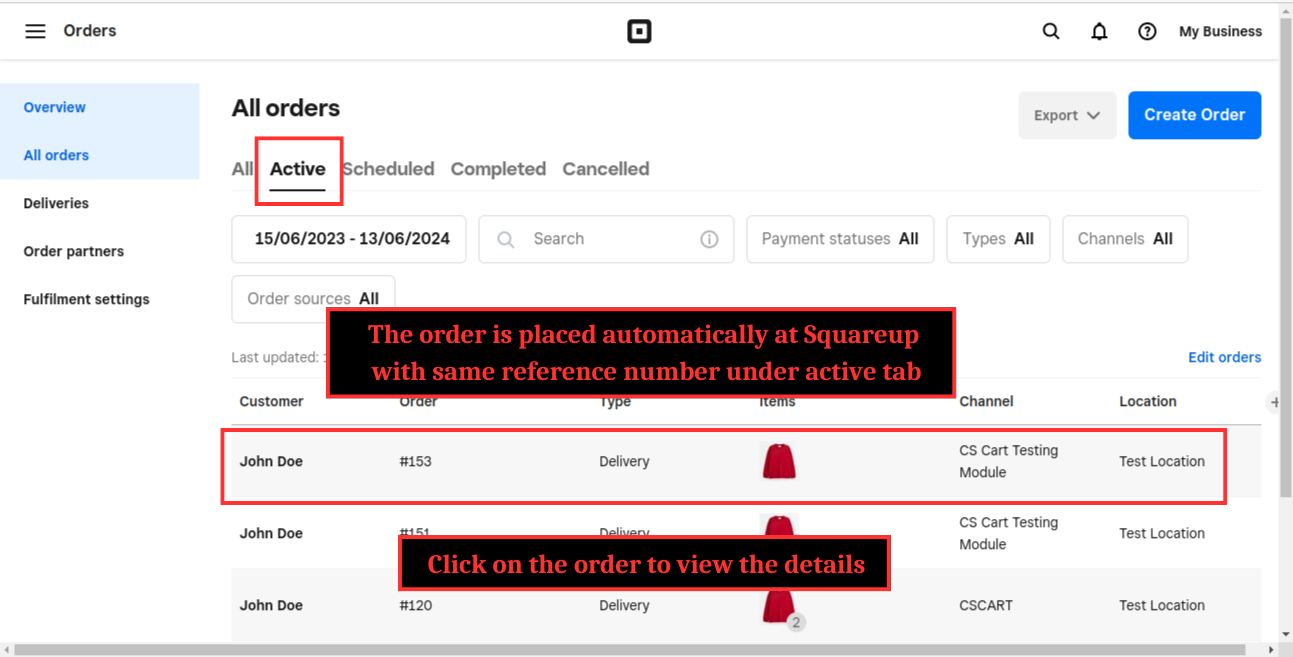
Step 12 : Now open the Squareup Website and Select Orders from Items & orders

The order is placed automatically at Squareup with same reference number
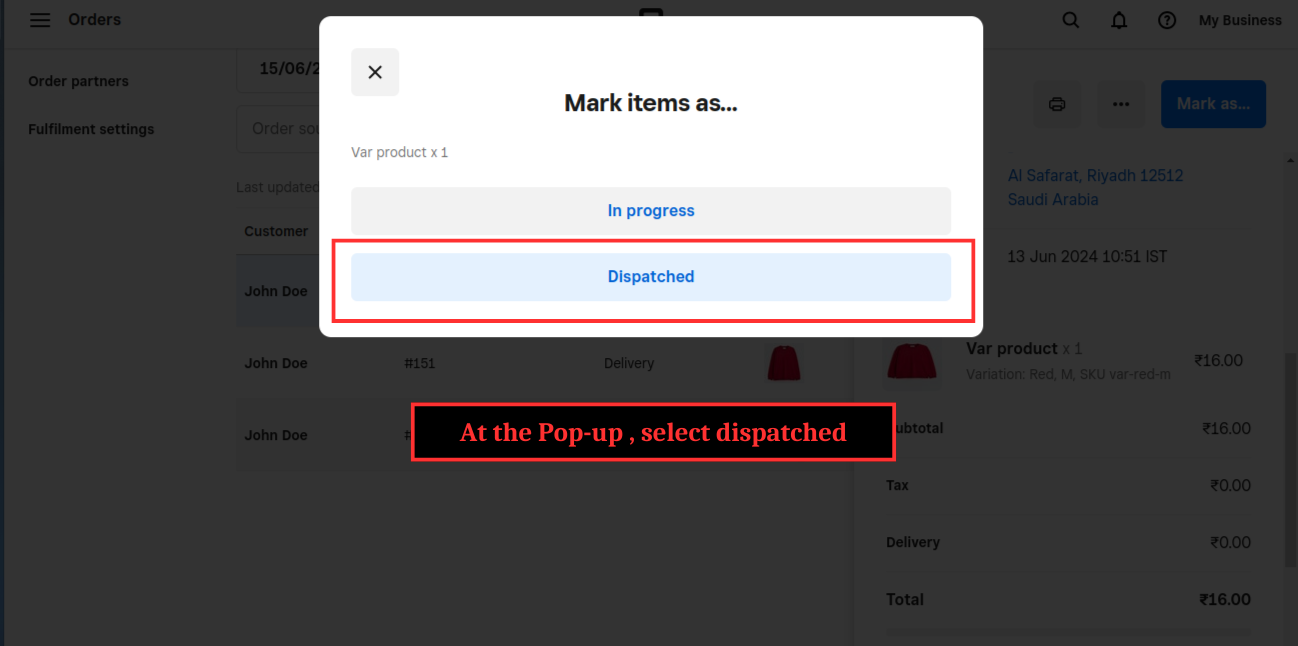
Step 10 : Now , Click on Mark as...

Step 11 : At the Pop-up , select dispatched

Step 12 : Now , Enter the Tracking Number , Select Delivery Company and Click on Done

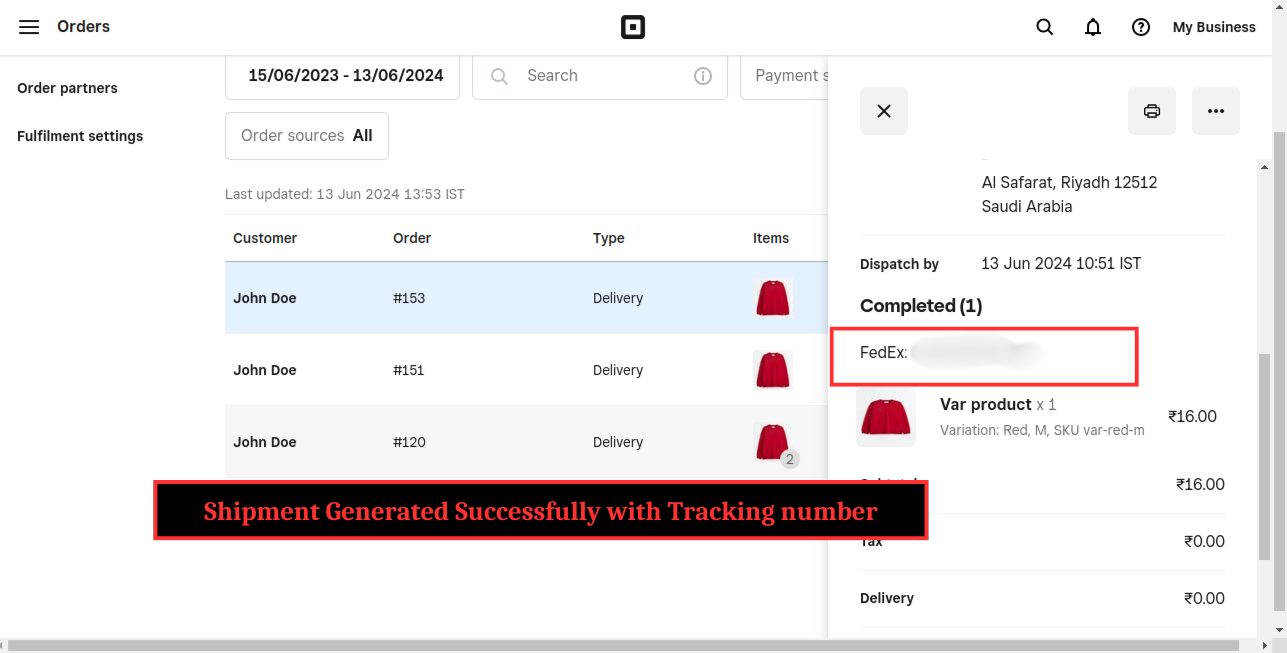
Shipment Generated Successfully with tracking number with status : Completed

Shipment Generated Successfully with same tracking number at CS-Cart as well
%2013.png?1724759328559)
- Transparent payment process : This Squareup offers a straightforward and transparent payment process , integrating with major payment processors like Stripe and Paypal.
- Easy to access : Squareup provides an intuitive interface that is easy for users to navigate and manage their websites , including the payment and e-commerce functionality.
- Works for test and live account : Squareup allows you to set up both test and live accounts for payment processing through its integration with Stripe , enabling you to test transactions before going live.
Using this add-on , you can significantly enhance your website’s functionality, aesthetics and user engagement.
Whether you are looking to integrate advanced e-commerce features , improve SEO , streamline your content management or customize your site’s design , this add-on provides the tools and flexibility you need.
By leveraging these additional capabilities , you can create a more dynamic and effective online presence , ultimately driving higher traffic , better customer satisfaction and increased business growth.
Embrace the full potential of your Squareup site with this powerful add-on and watch your digital footprint thrive.
Steps to create access token in Squareup:-
Step 1 : Login to Squareup developer account: https://developer.squareup.com/us/en
Step 2 : After login, Click on '+' box/button in Applications

Step 3 : In pop-up, enter application name and click on 'Next' button

Step 4 : Then select Order, Customer, Product and Inventory related check boxes/permissions and click on 'Next' button

Step 5 : Then select Myself and click on 'Complete' button

Step 6 : It will redirect you to new created app page and then click on 'Production' tab

Step 7 : In 'Production' tab, click on show button in 'Production Access token' field and copy this token.

Note : Copy this token and keep it