0 Item
Save 20%



Ecwid (Lightspeed e-series) CS-Cart MultiVendor connector
Introducing our Ecwid CS-Cart MultiVendor connector add-On, a powerful solution that integrate vendor Ecwid shops with your CS-Cart Multivendor marketplace: enabling seamless data synchronization between the two platforms with features like Product Importing, Order Management, Inventory Management, Data Mapping & Shipment Generation etc.
Ecwid Connector add-on for Cs-cart Multivendor
Seamlessly integrate your vendor’s Ecwid website with your CS-Cart marketplace
- Seamless Integration : Connects Ecwid with CS-Cart to ensure smooth data flow between the two systems.
- Product Importing : Automatically import products, including variants, options, descriptions, prices and images, from Ecwid to CS-Cart.
- Order Management : ransfers orders from CS-Cart to Ecwid for efficient processing and management, including order status updates.
- Inventory Management : Synchronizes stock levels to prevent overselling and ensure accurate inventory data across both systems.
- Data Mapping : Allows mapping of collections and product type from Ecwid’s with CS-Cart categories to ensure compatibility between Ecwid and CS-Cart data structures.
- Shipment Creation at Ecwid : Generate shipment with tracking number at Ecwid.
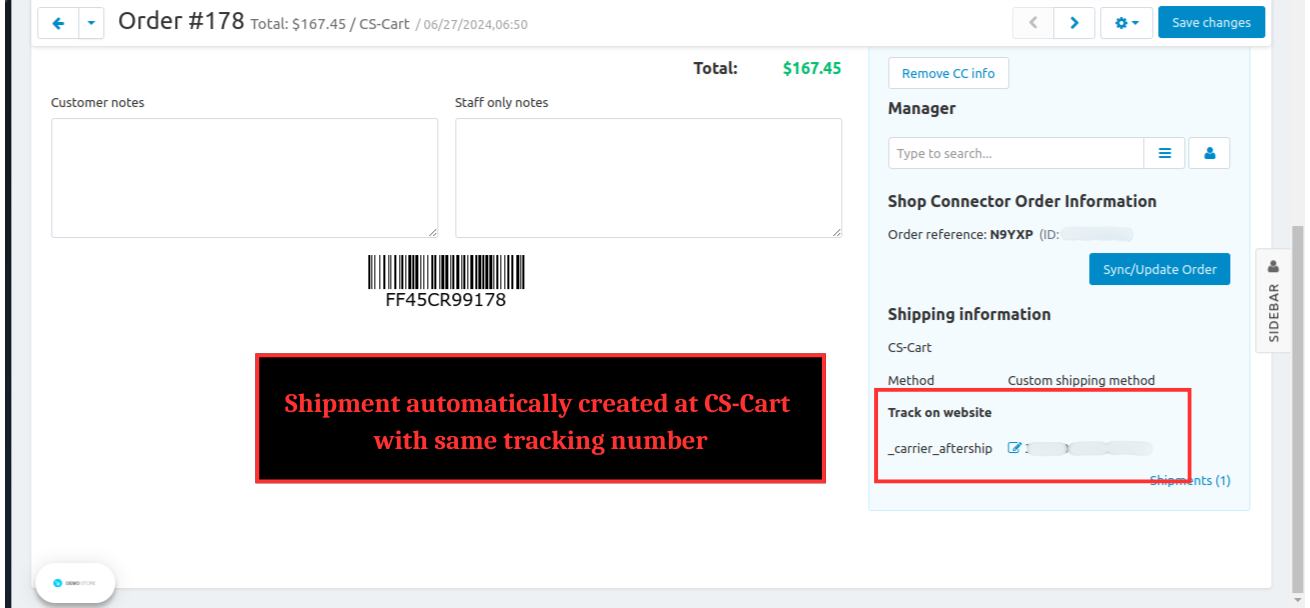
- Synchronized Shipment Tracking : The same shipment with the identical tracking number is automatically placed in CS-Cart. (One way sync)
- The add-on simplifies admin tasks by automating product synchronization from Ecwid to CS-Cart , ensuring efficient management and accurate data flow.
- The add-on provides customers with a seamless shopping experience by ensuring up-to-date product information and synchronized order processing across Ecwid and CS-Cart.
Note : The Shop Connector Manager should be purchased and installed before Ecwid(Lightspeed e-series) Shop Connector to make the Ecwid(Lightspeed e-series) Shop Connector functioning well.
Why our Ecwid add-on is the ultimate choice for E-commerce Enhancement?
- Hassle-Free Integration: This add-on ensures a smooth and hassle-free integration process, allowing you to quickly and effortlessly connect your CS-Cart store with the Ecwid add-on.
Add-on Installation Steps
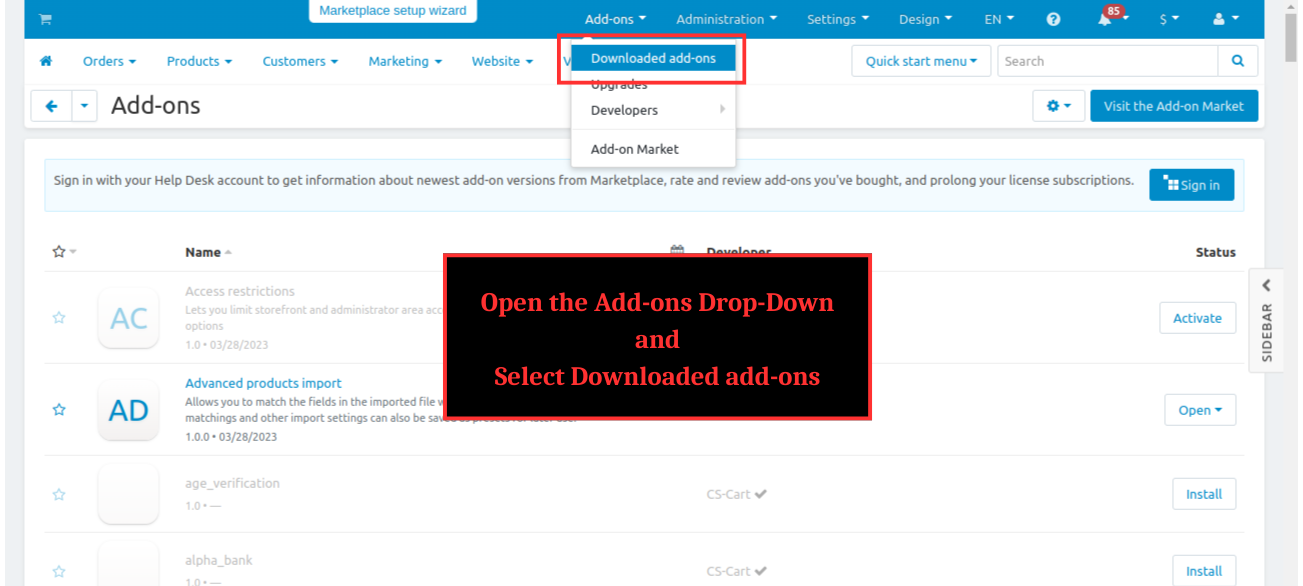
Step 1 : Open the Add-ons drop-down and select ‘downloaded add-on’

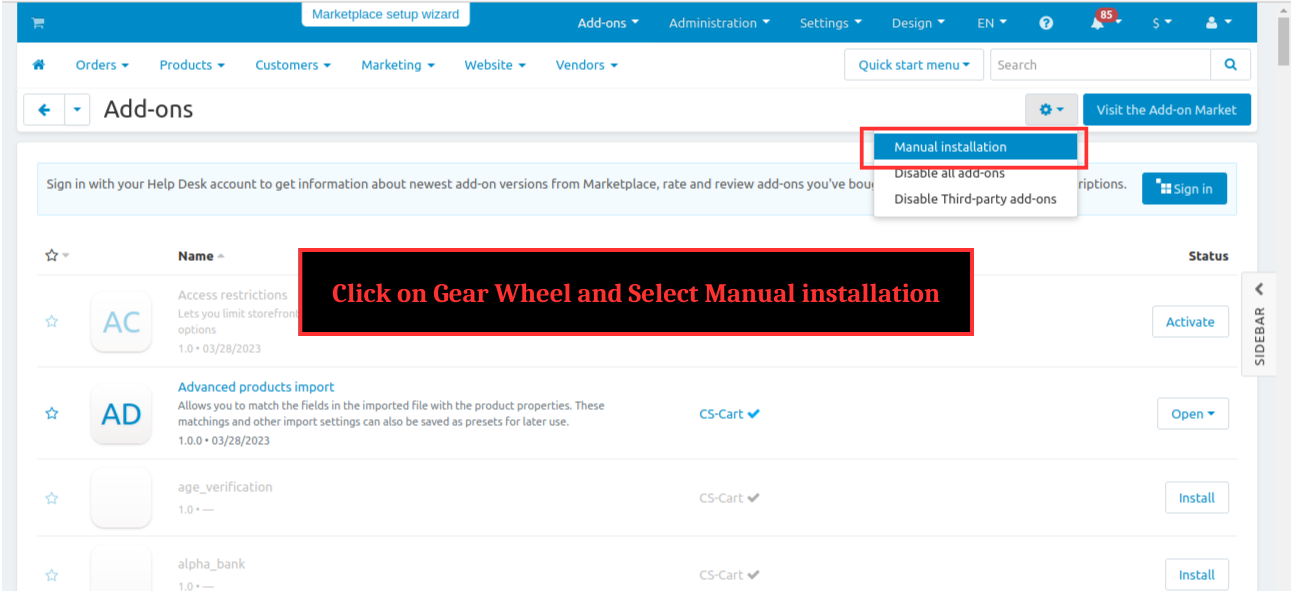
Step 2 : Click on gear wheel and select ‘Manual installation’

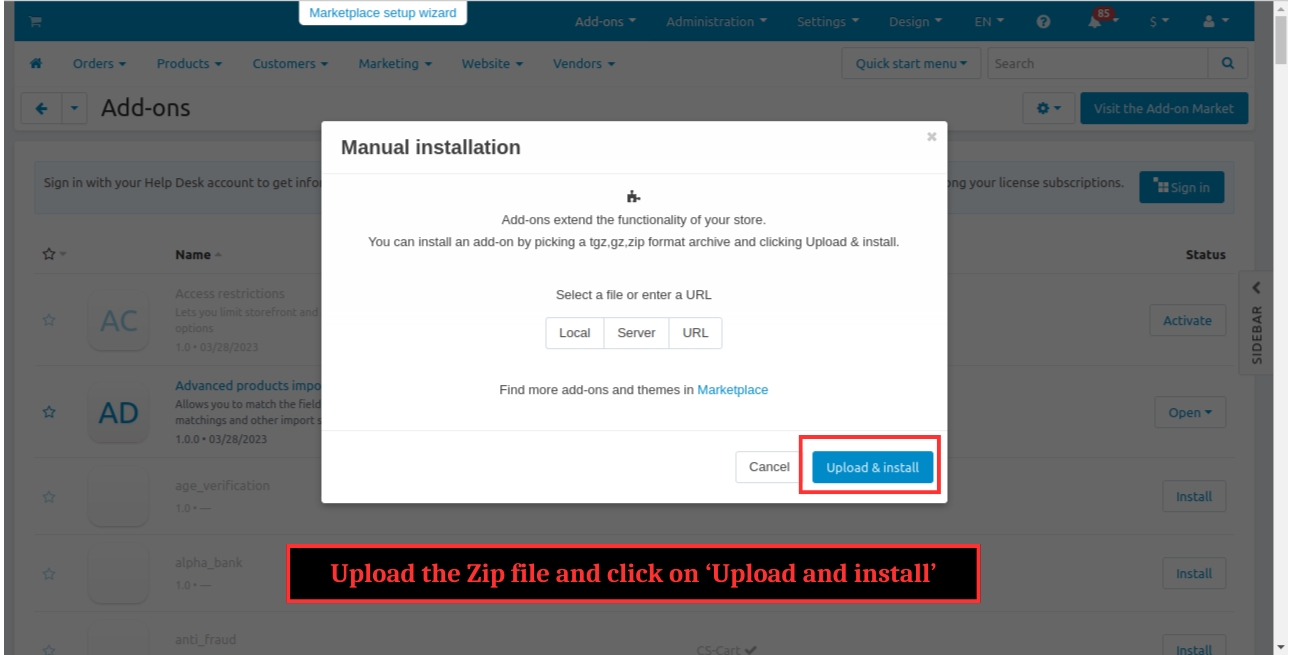
Step 3 : Upload the zip file and click ‘Upload and install’

The add-on installed successfully

Note : The Shop Connector Manager should be purchased and installed before Ecwid(Lightspeed e-series) Shop Connector to make the Ecwid(Lightspeed e-series) Shop Connector functioning well.
CS-Cart Integration Steps:
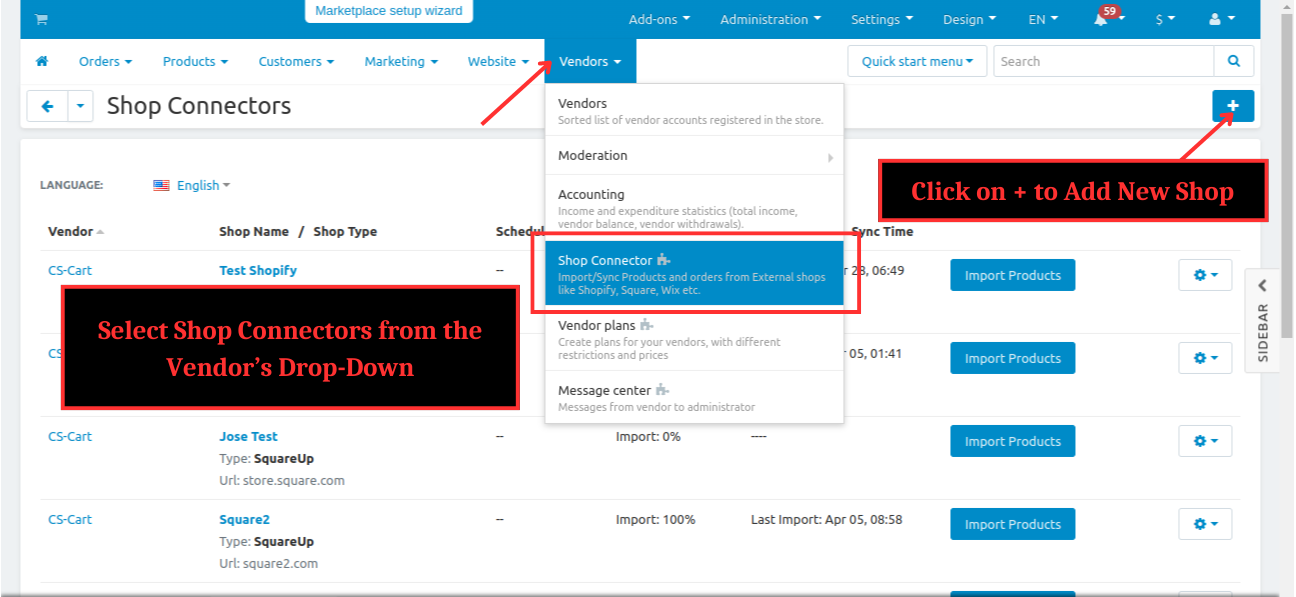
Step 1 : Open the CS-Cart and Select Shop Connectors from the Vendor’s Drop-Down and Click on + to Add a New Shop
%201.png?1724671596830)
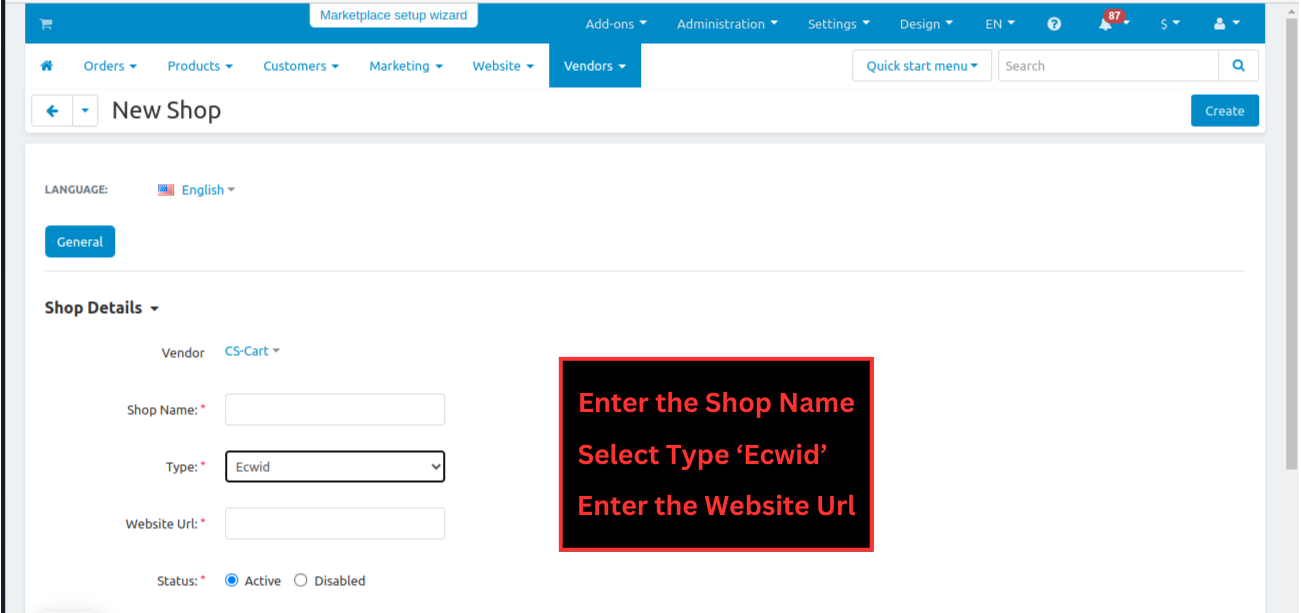
Step 2 :
- Enter the Shop Name
- In Type : Select Ecwid from the drop-down
- Enter the Website URL
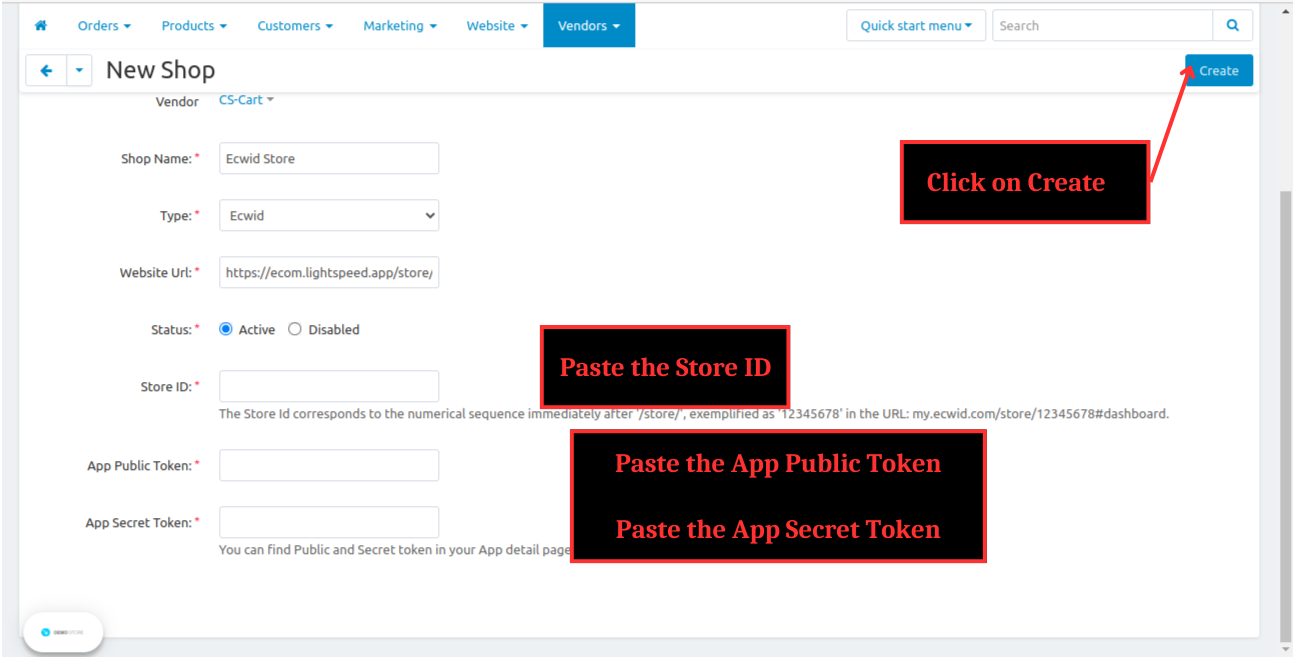
- Enter the Store ID
- Enter the App Public Token and App Secret Token
- Click on Create
%202.png?1724671610809)
Now , the Store ID , App Public Token and App Secret Token fields enabled
%203.png?1724671627265)
Note : You can get the Store ID , App Public Token and App Secret Token following the steps present in the end of document.
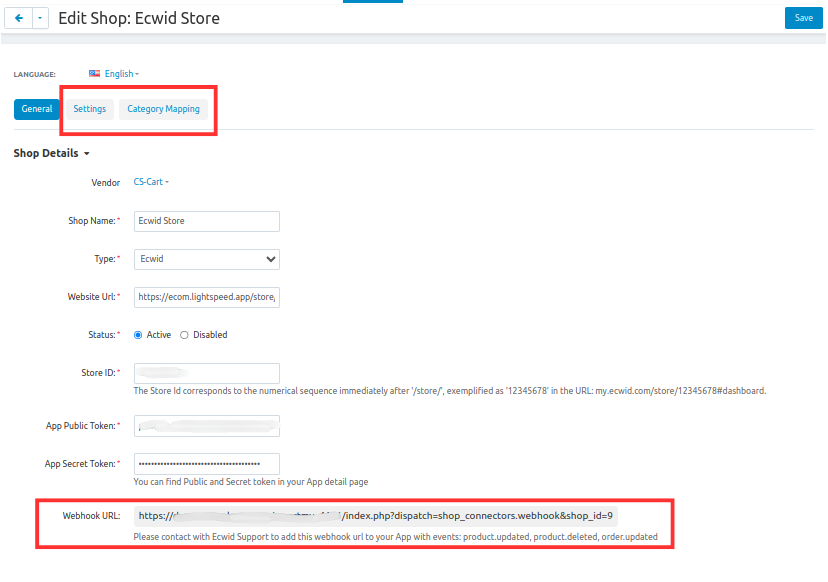
After clicking on Create , Webhook URL created and Settings , Category Mapping tabs enabled
%204.png?1724671642890)
Copy the Webhook url, it will be used at Ecwid app creation steps mentioned at last.
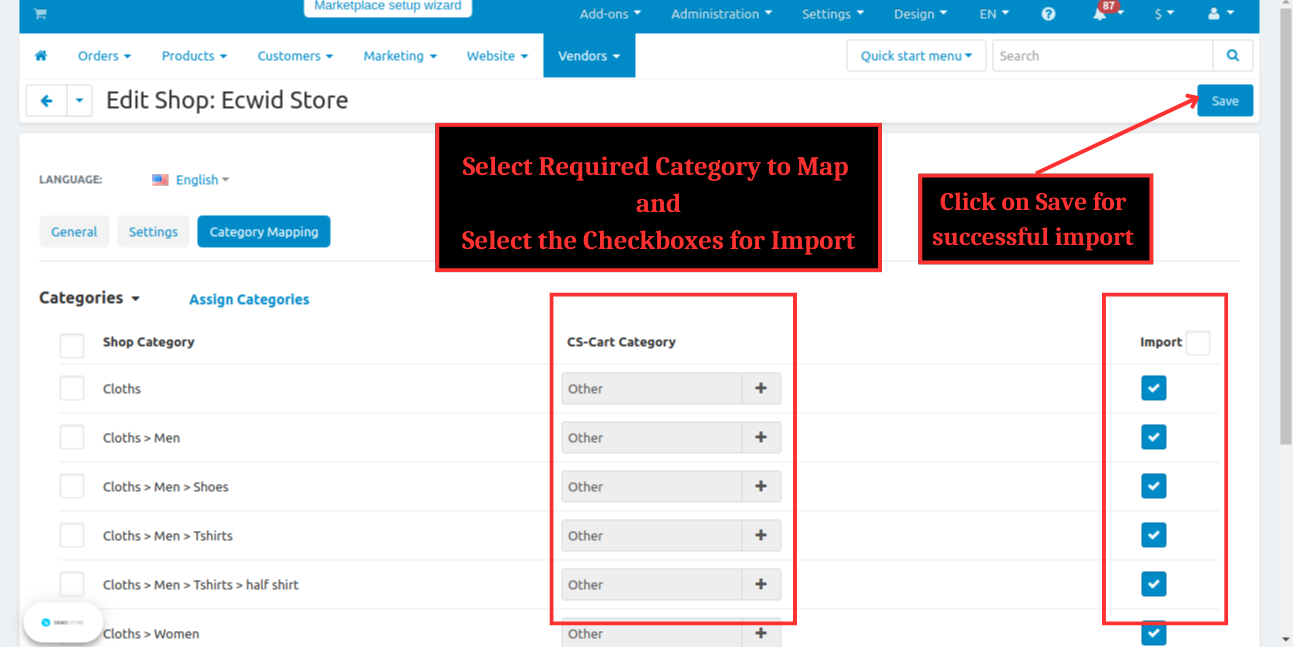
Step 3 : Open the Category Mapping tab , Select Required Category to Map , Select the checkboxes for import and Click on Save for successful import
%205.png?1724671677607)
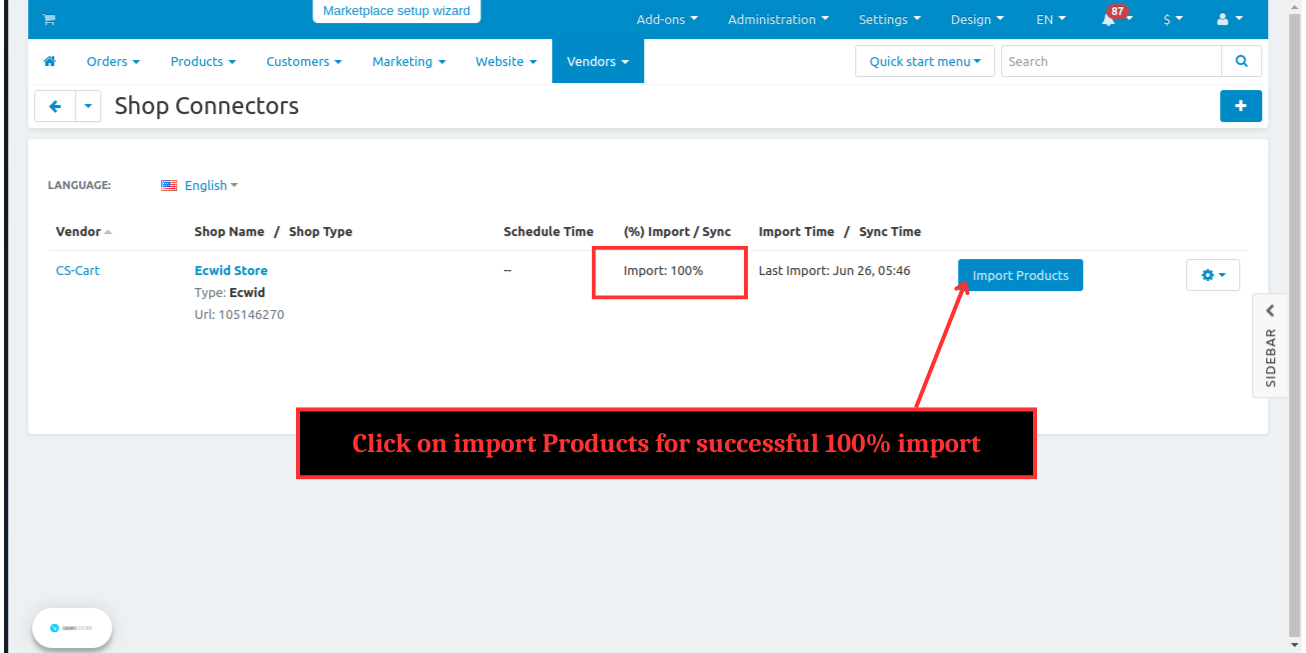
Step 4 : Click on Import Products for successful 100% import
%206.png?1724671696197)
Note : Products attributes supported , products options and variations supported
- Information related to products will be imported
- Products sync
Step 5 : Open the product at front end and click ‘Add to Cart’ and proceed to checkout
%201.png?1724671802212)
%202.png?1724671819146)
Enter the required details at checkout page and Click on Place Order
Step 6 : Select Orders -> View Orders at admin panel
%207.png?1724671854061)
Step 7 : Click on Order number to view Order’s details
%208.png?1724671930005)
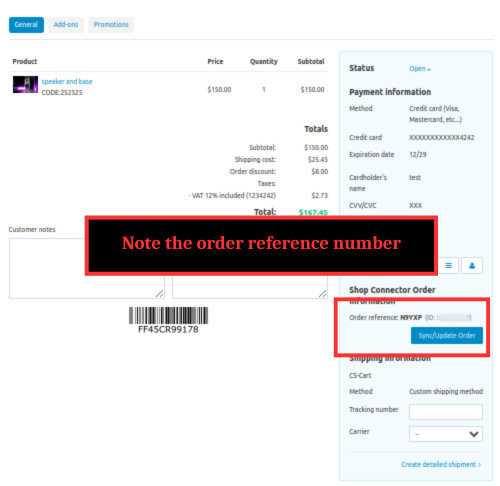
Step 8 : Note the order’s reference number from the order’s details screen
%209.png?1724672026797)
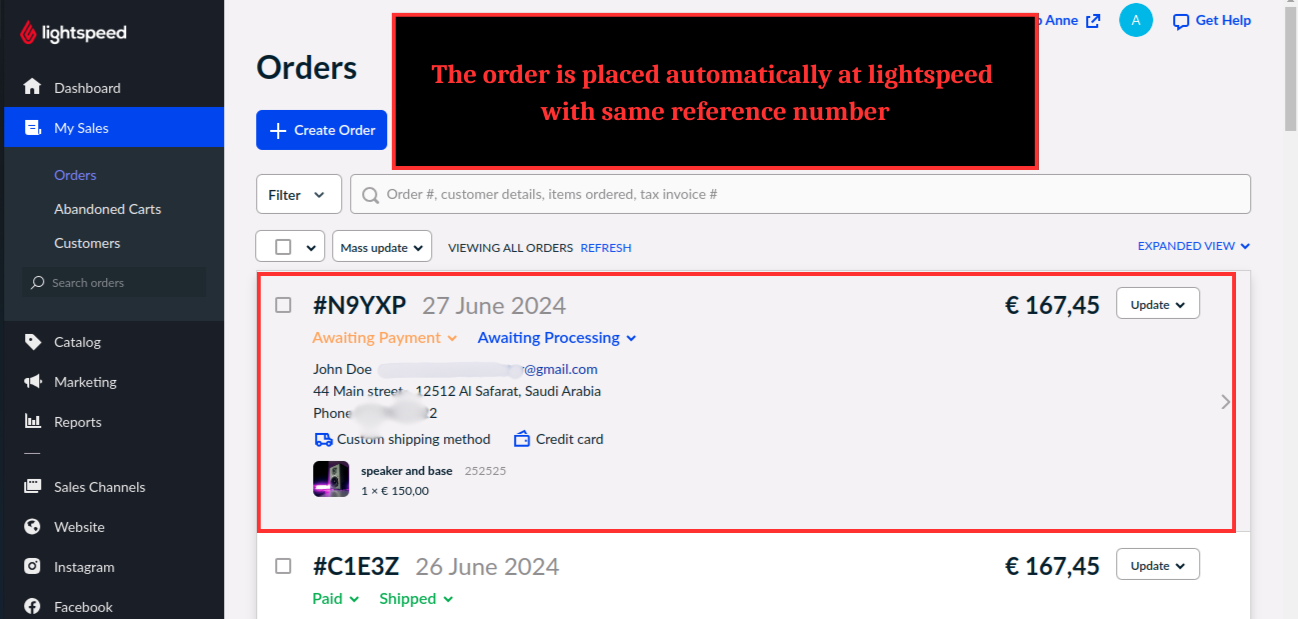
Step 9 : The order is placed automatically with same reference number at Ecwid

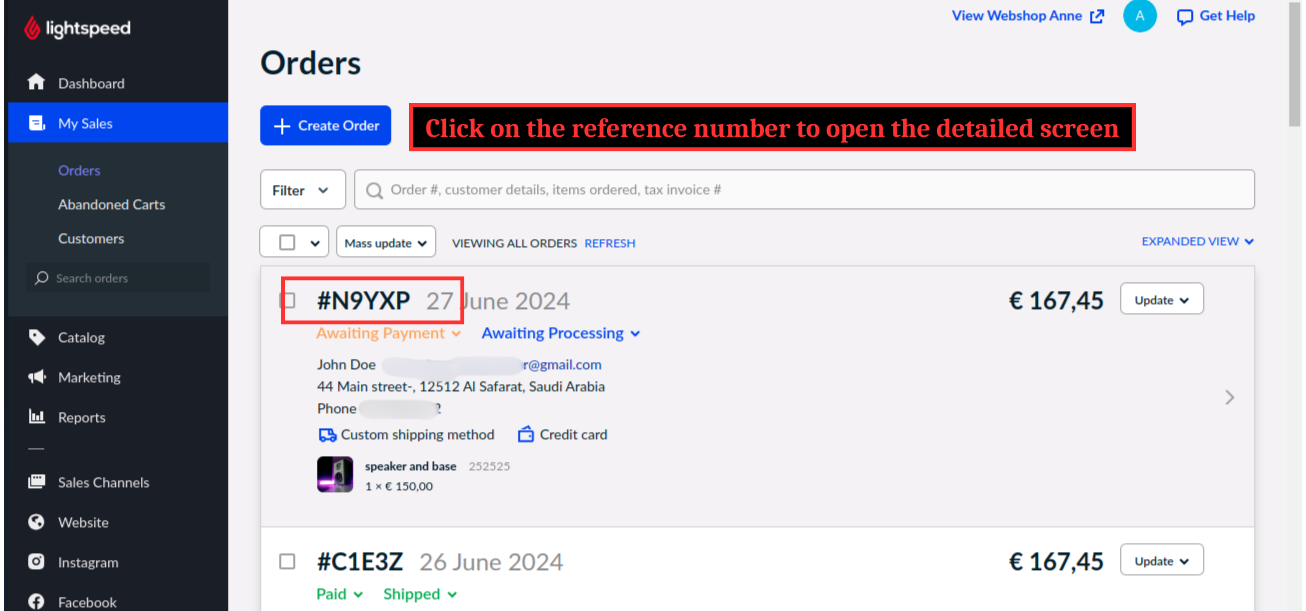
Step 10 : Click on the reference number to view the details page

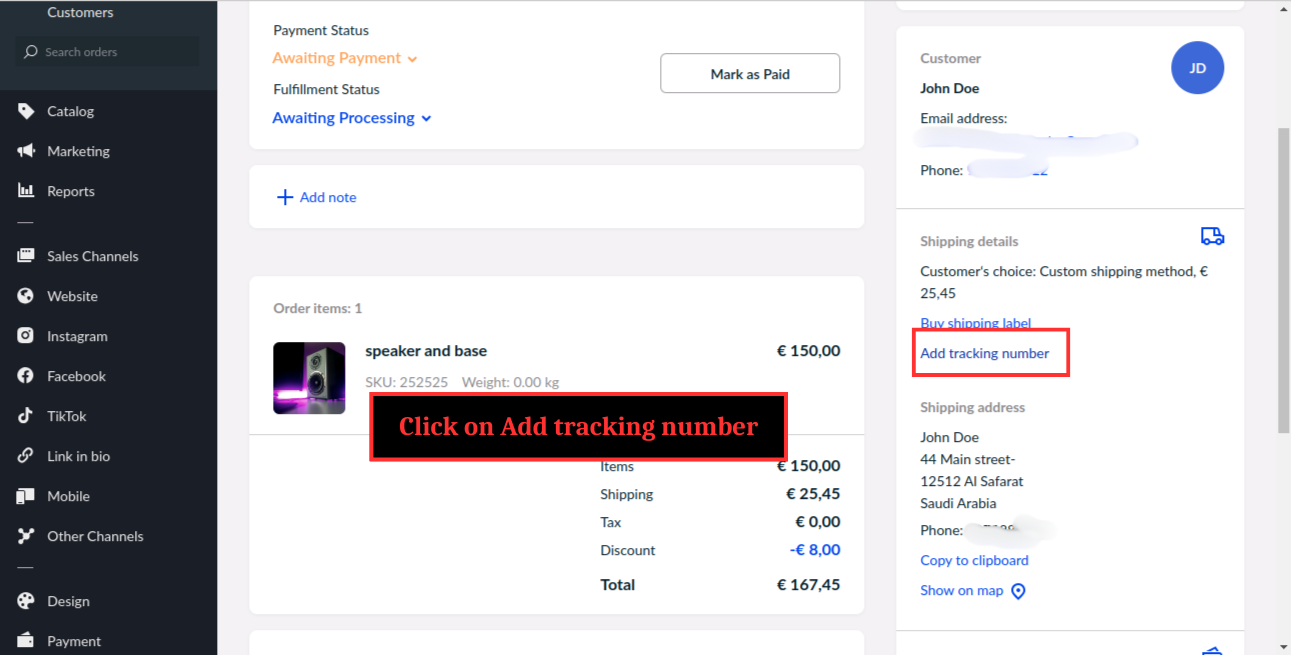
Step 11 : Once you add tracking number at Ecwid

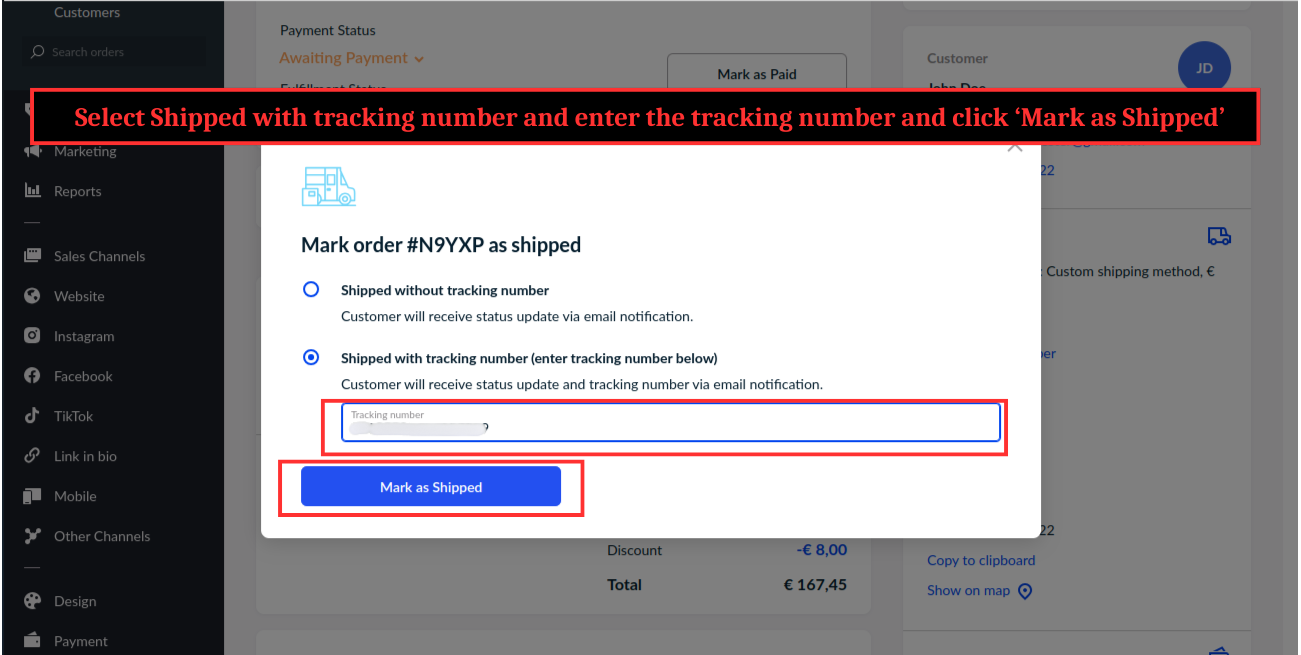
Step 12 : Select Shipped with tracking number and enter the tracking number and click ‘Mark as Shipped’

Shipment automatically created at CS-Cart with same tracking number
%2010.png?1724672146637)
Note : Sync / Update order button is used to sync the update from CS-Cart to Lightspeed
Since , the update done at Lightspeed is automatically sync to CS-Cart but to sync the updates done at CS-Cart to Lightspeed , vendor needs to click Sync/Update Order button
- Using this add-on allows you to easily integrate E-commerce functionality into your website.
- It supports business growth with its scalable features and provides various customization options to match your site’s design
- Additionally , Ecwid ensures secure and reliable transactions , making it cost-effective solution for online stores.
- Overall , it enhances your website by enabling you to sell products online efficiently and effectively.
Ecwid app creation Steps:
Note : Business Billing Plan is mandatory for add-on to work
Open the Billing and Plans from My Profile

Purchase/switch to the Business Plan(if you on lower plan) or above which is mandatory for add-on to work

Step 1 : Select Apps -> My Apps at ‘https://ecom.lightspeed.app/’ Lightspeed

Step 2 : Click on Manage App for getting tokens

Step 3 : Copy the Public Token and Secret Token

Step 4 : Copy the Store ID from the bottom of the page or from the url at the top

Step 5 : Paste the copied Webhook url here

Note : You cannot paste the url directly , you need to contact customer care of Lightspeed to configure Webhook.

Note : Request extra scopes from Ecwid support to enable enhanced integration functionality and optimize user experience. Must have these scopes for proper functioning.
Compatible versions:
- 4.10.1
- 4.10.2
- 4.10.3
- 4.10.4
- 4.10.4.SP1
- 4.11.1
- 4.11.2
- 4.11.3
- 4.11.4
- 4.11.5
- 4.12.1
- 4.12.2
- 4.13.1
- 4.13.2
- 4.13.2.SP1
- 4.13.2.SP2
- 4.13.3
- 4.14.1
- 4.14.1.SP1
- 4.14.2
- 4.14.2.SP1
- 4.14.3
- 4.14.3.SP1
- 4.15.1
- 4.15.1.SP1
- 4.15.1.SP2
- 4.15.1.SP3
- 4.15.1.SP4
- 4.15.2
- 4.16.1
- 4.16.2
- 4.17.1
- 4.17.2
- 4.17.2.SP1
- 4.17.2.SP2
- 4.17.2.SP3
- 4.18.1
- 4.18.1.SP1
- 4.18.2
- 4.18.2.SP1
- 4.6.3
- 4.7.1
- 4.7.2
- 4.7.3
- 4.7.4
- 4.8.1
- 4.8.2
- 4.9.1
- 4.9.2
- 4.9.3
Localizations:
- English
Payment type:
One-time payment
Product:
- Multi-Vendor
- Multi-Vendor Plus
- Multi-Vendor Ultimate
Addons features
Server Update:
Shared features
Free:
On market:
RTL Support:
No reviews found
FAQ Block